Introduction – What is Digital Decluttering?
“Clutter is costly.”― Cal Newport, Digital Minimalism: Choosing a Focused Life in a Noisy World
We spend more time in the digital world than ever. From emails and photographs to documents, apps and social media, our devices have become an important part of everyday life.
But how organised is your digital life?
Do you have thousands of unread emails, hundreds of photographs you never look at, files saved in different folders or apps on your phone that you haven’t used in years? Perhaps you regularly struggle to find documents or spend far too long searching for something you know you saved somewhere.
If this sounds familiar, you are not alone.
Just like our homes, our digital spaces can become cluttered. Over time, we accumulate files, messages, photographs, downloads and applications without necessarily thinking about whether we still need them.
Digital clutter might not take up physical space in our homes, but it can take up valuable storage, time and mental energy.
“The constant dilemma of the information age is that our ability to gather a sea of data greatly exceeds the tools and techniques available to sort, extract, and apply the information we’ve collected.” ― Jeff Davidson, work-life balance expert, author, columnist.
The good news is you don’t need to organise everything at once. With a little time and a few simple systems, you can take control of your digital environment.
In this guide, I’ll explore how to declutter and organise your digital life, from your smartphone and computer to your inbox and cloud storage.
Remember, the aim isn’t digital perfection. It’s about creating a system that makes everyday life easier.
1. Start with a Digital Decluttering Plan
Before you start deleting files or reorganising folders, take a moment to consider what you want to achieve.
Digital decluttering can feel like a huge undertaking, particularly if you’ve accumulated years of emails, photographs and documents.
Trying to tackle everything at once can quickly become overwhelming.
Instead, break the process down into manageable tasks.
Identify your problem areas.
Think about which parts of your digital life cause you the most frustration.
For example:
- An overflowing email inbox.
- A smartphone full of unused apps.
- Thousands of photographs and screenshots.
- Documents scattered across your computer.
- Multiple copies of the same files.
- Limited storage space.
- Too many notifications and digital distractions.
Make a short list of your priorities and work in small sessions. You don’t need to spend an entire weekend organising your digital life. Try setting aside 15–30 minutes at a time. Choose one task and concentrate on completing it before moving on.
For example:
- Monday: Delete unwanted apps.
- Tuesday: Organise your desktop.
- Wednesday: Unsubscribe from unwanted emails.
- Thursday: Tidy your downloads folder.
- Friday: Review your photographs.
Small steps can make a surprisingly big difference.
“If you concentrate on small, manageable steps, you can cross unimaginable distances.”― Shaun Hick

2. Declutter Your Smartphone
The sheer volume of digital detritus on my phone sends shivers up my spine. My phone holds tens of thousands of photos and hundreds of miscellaneous notes, many now indecipherable – It’s Time to Declutter Your Phone. Here’s How
Our smartphones are probably the devices we use most frequently. They contain photographs, messages, contacts, apps, notes and all sorts of information. It’s easy for them to become cluttered.
Here are some simple ways to declutter your phone.
Delete unused apps
Take a look at the applications installed on your phone.
Are there apps you downloaded for a particular purpose but never use? Perhaps there are games you’ve lost interest in or shopping apps from retailers you no longer visit.
Delete anything you no longer need.
Before removing an app, check whether it contains information you want to keep or whether your account and data are stored separately.
Organise your home screen.
Do you have several pages of apps that make it difficult to find what you’re looking for?
Try keeping your most frequently used apps on your main screen.
You could organise other applications into folders, such as:
- Finance and banking.
- Shopping.
- Travel.
- Health and wellbeing.
- Photography.
- Entertainment.
Keep things simple. The idea is to make your phone easier to navigate.
Review your notifications
Constant notifications can interrupt your concentration and make you feel as though you always need to check your phone.
Review which applications are allowed to send notifications.
Turn off unnecessary alerts, particularly promotional notifications and notifications from apps you rarely use.
Keep notifications for things that genuinely require your attention.
Review your contacts
Take a little time to remove duplicate contacts and update outdated information.
You might also want to review contacts you no longer need.
3. Organise Your Computer and Digital Files
A cluttered computer can make everyday tasks unnecessarily stressful.
If your desktop is covered in documents, your downloads folder contains hundreds of files, and you have no idea where anything is saved, it’s time for a little digital housekeeping.
Start with your desktop.
Your desktop should make it easy to access the files you regularly use.
Move documents into appropriate folders and delete anything you no longer need.
Try to avoid using your desktop as a permanent storage area.
Sometimes, you might place a file on your computer’s desktop so it will be in your line of sight and easy to remember. Then, you repeat this action a few more times. Before you know it, the principle defeats itself. How can you see and remember a file among a messy heap of others?- Down. 5 Tips for Cleaning Up Your Phone and PC for Good
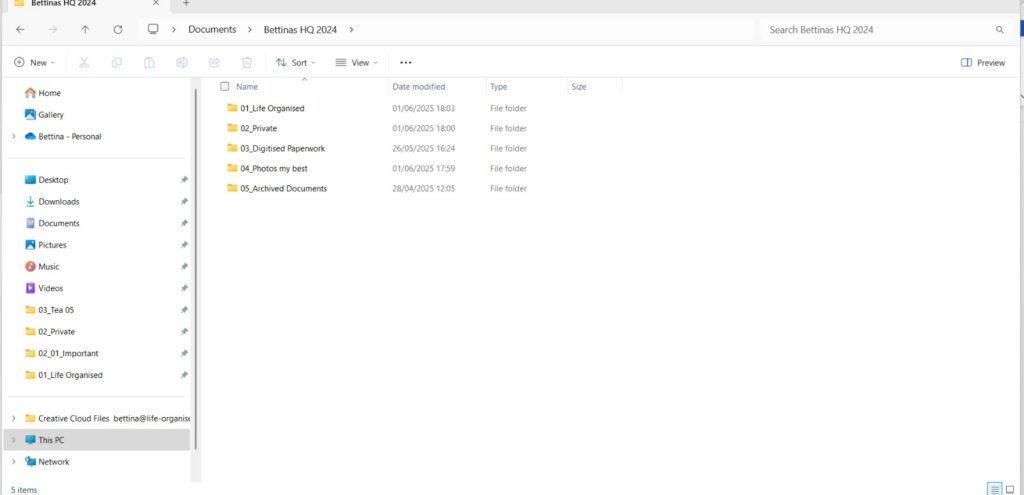
Create a simple folder structure.
One of the easiest ways to organise your computer is to create a straightforward folder system.
For example:
- Personal
- Finance
- Health
- Home
- Travel
- Work
- Projects
- Administration
- Marketing
- Important Documents
- Insurance
- Certificates
- Contracts
- Photographs
- Reference Materials
You can create additional subfolders where necessary, but avoid making your system too complicated.
The best filing system is one that you can understand and maintain.
Give your files meaningful names. Generic filenames such as Document1, Scan003 or Untitled are not particularly helpful when you’re trying to find something. Rename files using clear, descriptive names.
For example, instead of:
- Document1.docx
- IMG_20261015.jpg
- Scan003.pdf
Try:
- Household-Budget-2026.xlsx
- Birthday-Party-October-2026.jpg
- Home-Insurance-Policy-2026.pdf
You could also use dates in the format YYYY-MM-DD to make files easier to sort chronologically.
Consistency is more important than having an elaborate naming system.
Tackle your downloads folder.
The downloads folder is often where digital clutter accumulates.
It might contain old PDFs, duplicate documents, installation files, images and things you downloaded once and promptly forgot about.
Review the contents and decide what to:
- Keep and move into an appropriate folder.
- Delete because you no longer need it.
- Rename so you can find it easily.
Remember to check that important files are safely stored elsewhere before deleting anything.

4. Declutter Your Email Inbox
“Your email inbox is not your to-do list.” — Merlin Mann.
An overflowing email inbox can be one of the biggest sources of digital stress.
Newsletters, promotional messages, notifications, receipts and everyday correspondence can quickly accumulate.
You don’t necessarily need to achieve Inbox Zero, but having a manageable inbox can make a real difference.
Unsubscribe from unwanted emails. How many newsletters and promotional emails do you actually read? Take a look at the messages arriving in your inbox and unsubscribe from those that are no longer relevant.
This is one of the simplest ways to reduce incoming digital clutter.
Be cautious with suspicious emails. Don’t click unsubscribe links in messages that look like spam or phishing attempts; report or block them instead.
Delete unwanted emails. Start by removing obvious clutter.
Look for:
- Old promotional emails.
- Unwanted newsletters.
- Expired offers.
- Duplicate notifications.
- Unnecessary automated messages.
You can often search for particular senders or keywords to make this process quicker.
Create email folders or labels.
If you receive lots of emails, a simple filing system can help.
For example:
- Work.
- Personal.
- Finance.
- Shopping and Receipts.
- Travel.
- Important Information.
You don’t need dozens of folders. Start with a few useful categories.
Use filters and rules. Most email services allow you to create automatic filters or rules. These can move particular emails into folders, mark messages as read or identify important correspondence. For example, you could automatically direct newsletters into a separate folder rather than allowing them to fill your main inbox.
Establish an email routine.
Instead of checking your inbox every few minutes, set aside specific times during the day to deal with emails.
This can help reduce interruptions and give you more time to concentrate on other tasks.
5. Organise Your Digital Photographs
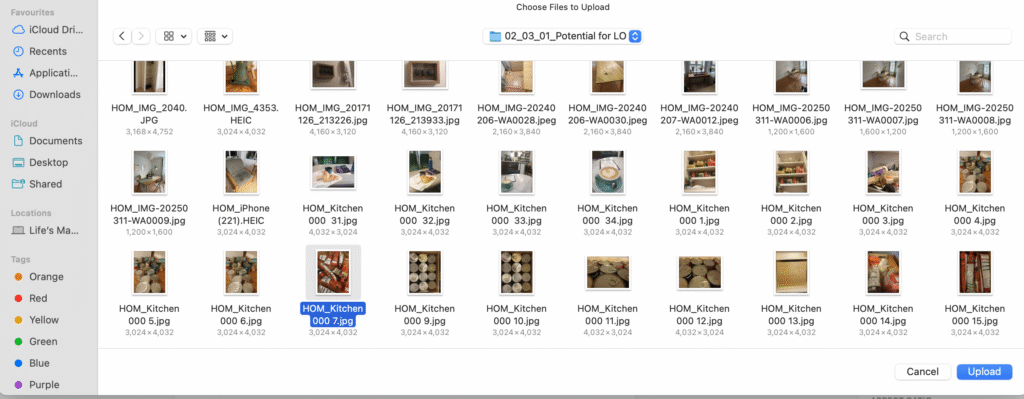
Digital photography has made it easier than ever to take pictures, but it has also made it easier to accumulate thousands of images.
Our phones are often filled with photographs, screenshots, duplicate images, blurry pictures and pictures we have forgotten about.
You don’t need to keep every photograph you have ever taken. Delete unwanted photographs
Start by looking for:
- Blurry photographs.
- Accidental pictures.
- Duplicate images.
- Screenshots you no longer need.
- Photographs of things you have already dealt with.
- Images you no longer want to keep.
You don’t have to make difficult decisions about every photograph. Start with the obvious ones.
Create photograph albums and organise your favourite photographs into albums.
You could arrange them by:
- Year.
- Family and friends.
- Holidays.
- Special occasions.
- Places you’ve visited.
- Hobbies and interests.
Choose a system that makes sense to you.
Review screenshots as they are particularly good at accumulating on smartphones. We take them to remember something, save information or share details with someone, but often forget about them afterwards. Review your screenshots regularly and delete those you no longer need.
Back up your photographs
Photographs can be irreplaceable, so make sure you have a reliable backup system.
You might use:
- An external hard drive.
- Cloud storage.
- A computer or laptop.
- A combination of different backup methods.
Remember that synchronising photographs across devices isn’t necessarily the same as having an independent backup. Check how your chosen service handles deletion and storage.
6. Tidy Up Your Cloud Storage
Cloud storage services such as Google Drive, OneDrive, iCloud and Dropbox make it convenient to access files from different devices. However, they can also become digital dumping grounds.
What is cloud storage?
Cloud storage is a cloud computing service in which data and files are stored offsite by a third-party provider and can be accessed through a public internet or dedicated private network connection. – IBM
If you regularly save documents without organising them, finding anything can become difficult.
Review your cloud storage. Look through your folders and identify files you no longer need.
Pay particular attention to:
- Duplicate documents.
- Old downloads.
- Outdated versions of files.
- Large files you no longer use.
- Shared folders you no longer need access to.
Create a consistent folder structure.
If you use more than one cloud storage service, try to use a similar filing structure across them.
This makes it easier to remember where things are saved.
Check shared files and folders.
Review documents and folders that other people have shared with you.
Remove access to shared material you no longer need, where appropriate.
Be careful not to delete files that belong to someone else or are shared with other people.
Understand your storage settings.
Check how much storage space you have available and which files or services are using it.
You may find that photographs, videos and large attachments are taking up most of your space.
Before deleting anything, make sure you understand whether the file is stored locally, in the cloud or synchronised across multiple devices.
7. Review Your Digital Subscriptions and Online Accounts
Over time, we can accumulate online accounts and subscriptions that we no longer use. Perhaps you signed up for a free trial, joined a shopping website or subscribed to a streaming service that you rarely access.
These accounts can create unnecessary digital clutter and, in some cases, ongoing costs.
Review your subscriptions
Make a list of your recurring subscriptions.
Consider:
- Streaming services.
- Online memberships.
- Software subscriptions.
- Shopping memberships.
- Newsletters and paid publications.
- Cloud storage plans.
Ask yourself whether you still use and value each service.
Cancel subscriptions you no longer use, and check renewal dates and cancellation terms.
Close unused online accounts
Think about websites and services you signed up for but no longer use.
Where possible, close accounts you no longer need.
Before closing an account, download any information you want to keep and check whether it is linked to other services.
Review your passwords
A password manager can help you securely track your login details.
Make sure your important accounts have strong, unique passwords.
Enable two-factor authentication wherever possible, particularly for email, banking and other sensitive accounts.
Never store passwords in unprotected documents or spreadsheets.

8. Reduce Digital Distractions
Digital decluttering isn’t just about deleting files and organising folders. It’s also about managing how technology affects our everyday lives.
Our devices are designed to keep us connected, but constant notifications, emails and social media updates can make it difficult to concentrate.
Review your social media accounts.
Take a look at the accounts you follow.
Are they providing useful information, inspiration or enjoyment? Or are they making you feel overwhelmed?
Unfollow or mute accounts that no longer add value to your life. You might also want to leave online groups that you no longer participate in.
Turn off unnecessary notifications.
You don’t need to know every time someone posts an update or a retailer announces a sale.
Keep notifications for important messages and reminders, and switch off the rest.
Set boundaries around screen time
Consider introducing a few simple boundaries.
For example:
- Avoid checking your phone first thing in the morning.
- Keep your phone away during meals.
- Set aside time without screens.
- Avoid unnecessary scrolling before bedtime.
- Take regular breaks from your computer.
You don’t need to disconnect completely. The aim is to make technology work for you rather than allowing it to dominate your time.

9. Protect Your Digital Life
Once you’ve organised your digital information, it’s important to protect it.
Digital security is an essential part of digital organisation.
Here are a few simple steps.
Back up important information
Make sure important documents, photographs and other files are backed up regularly.
Consider keeping an additional backup separate from your everyday devices and cloud accounts.
Keep software up to date.
Install updates for your operating system, applications and security software.
Updates often include important security improvements.
Use strong passwords
Use unique passwords for your important accounts and consider using a reputable password manager.
Enable two-factor authentication where available.
10. Create a Digital Maintenance Routine
Once you’ve decluttered your digital spaces, the next step is keeping them manageable.
You don’t want to spend hours repeating the same process every few months.
The secret is to introduce a few simple habits into your everyday routine.
Here are some suggestions:
Daily
- Delete unwanted emails.
- Save important documents in the correct folders.
- Delete unnecessary screenshots.
- Deal with downloads rather than letting them accumulate.
Weekly
- Review your inbox.
- Delete unwanted photographs.
- Check your downloads folder.
- Remove unnecessary notifications.
Monthly
- Review your smartphone apps.
- Check your cloud storage.
- Review subscriptions.
- Back up important files.
- Tidy your desktop.
You don’t need to follow this schedule rigidly. Adapt it to suit your lifestyle and the amount of digital information you manage.

11. What If Digital Decluttering Feels Overwhelming?
If you have years of accumulated emails, photographs, and documents, organising everything can feel daunting. Perhaps you don’t know where to begin, or you’re worried about accidentally deleting something important.
My advice is to start small.
Choose one device, one folder or one task.
You could begin by deleting five unused apps, organising ten documents or unsubscribing from three unwanted newsletters.
You don’t have to finish everything today.
Remember that digital decluttering is about making your life easier, not creating another long list of jobs to complete.
If you are struggling, consider asking someone to help you establish a straightforward filing system or organise your devices.
Sometimes having another person alongside you can make the process feel much more manageable.
Conclusion – Make Technology Work for You
Digital decluttering isn’t about having the latest devices, the fewest apps or a perfectly organised inbox.
It’s about taking control of your digital environment so technology supports your everyday life rather than complicating it.
By removing unnecessary information, organising important files and introducing a few simple routines, you can save time, reduce frustration and create more mental space.
You don’t need to do everything at once. Start with one small task and build from there.
At Life Organised, I believe that organisation should make life easier, not harder. Simple systems that work can help you spend less time searching, sorting and worrying, and more time doing the things that matter most.
If your digital life feels overwhelming, I can help you get started.
Life Organised – Creating More Time for What Matters Most.
trabantbettina

Bettina Anna Trabant, Founder of Life Organised, your professional organising and decluttering service in East London. Eco-conscious minimalist and avid tea drinker,